
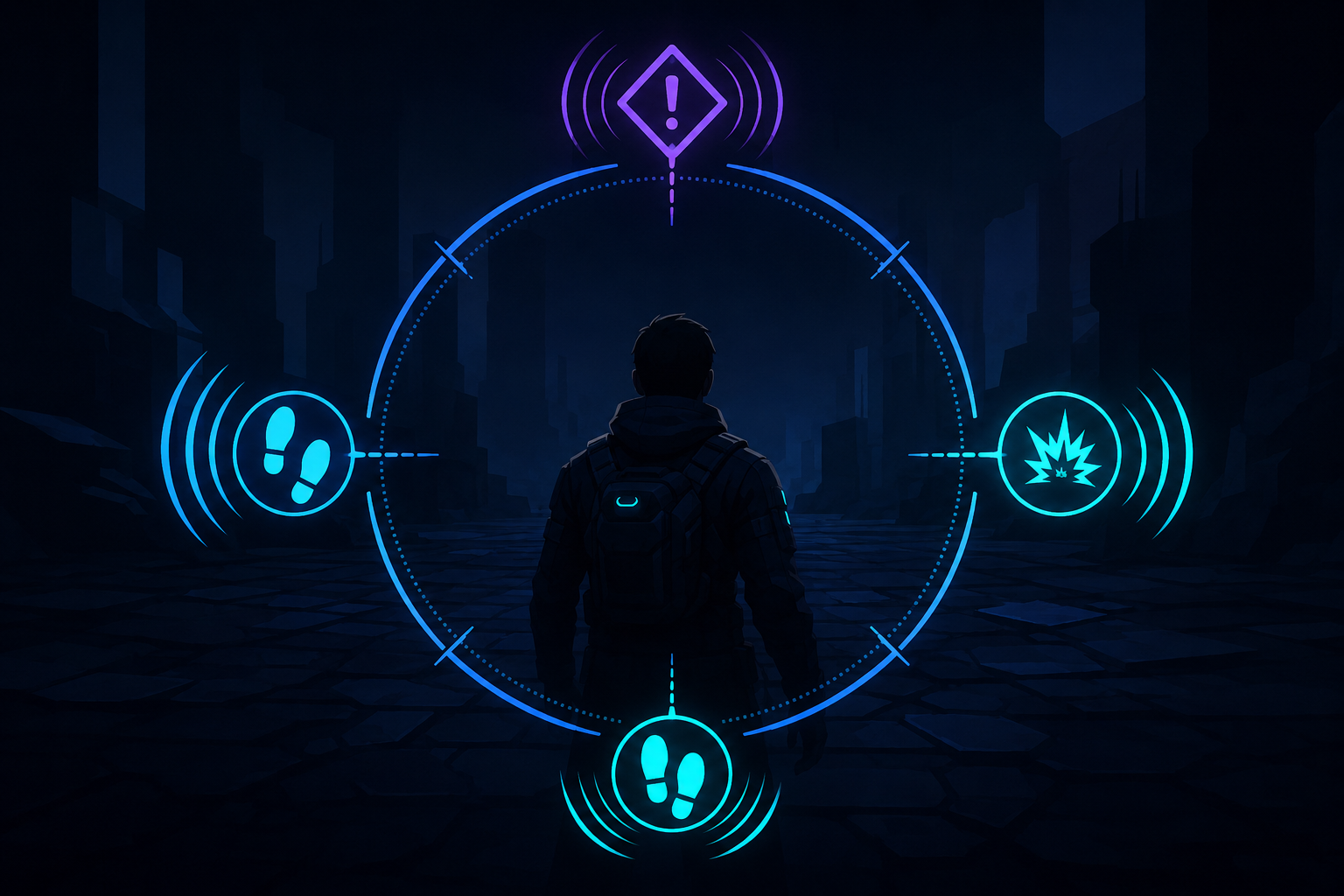
Directional sound visualizers turn selected audio cues into icons, captions, or pointers. They may help when spatial audio is unavailable, when a player cannot hear a cue reliably, or when visual information is simply easier to follow. Access needs and preferences vary, and these settings do not make any game fully accessible.
Fortnite: Visualize Sound Effects
Fortnite includes a built-in Visualize Sound Effects setting. It adds a radial indicator for some nearby sounds. Epic’s instructions place the option under Settings, then Audio. The indicator can show which direction a supported sound is coming from without requiring a player to locate it through stereo or spatial audio alone.
Platforms: Windows PC, PlayStation 4 and 5, Xbox One and Series X|S, Nintendo Switch and Switch 2, Android, and iOS/iPadOS, based on Epic’s current Fortnite platform list. The important limitation is in Epic’s own wording: the radial indicator covers some sounds, not every piece of audio. Available cues may also differ between Fortnite experiences.
Hogwarts Legacy: Audio Visualizer
Hogwarts Legacy has a built-in Audio Visualizer that places icons for key sound effects on a wheel around the player character. The accessibility menu also includes an icon key and separate controls for icon size and transparency. This gives players some control over both interpretation and screen visibility.
Platforms: PC, PlayStation 4 and 5, Xbox One and Series X|S, Nintendo Switch, and Nintendo Switch 2. The visualizer represents key sound effects rather than every sound. It is also separate from the game’s dialogue subtitles, so players may want to review both settings.
Far Cry 6: Sound Subtitles
Far Cry 6 uses text and direction together. Its built-in Sound Subtitles show captions for important gameplay sounds with a pointer indicating the sound’s direction and distance. The Hearing Preset enables the setting as part of a group, but players can also adjust individual options.
Platforms: Windows PC, PlayStation 4 and 5, and Xbox One and Series X|S. Sound Subtitles focus on important gameplay sounds, so they should not be treated as a complete transcript of the soundscape. Dialogue subtitles, speaker names, and other caption controls are separate.
Rainbow Six Extraction: Sound-Effects Wheel
Rainbow Six Extraction maps critical sound effects into HUD space through a built-in sound-effects wheel and visual pointers. Ubisoft describes the feature as an alternative for players who are Deaf or hard of hearing and for anyone who cannot use spatial audio. It can make the direction of supported threats or events visible during play.
Platforms: Windows PC, PlayStation 4 and 5, and Xbox One and Series X|S. The wheel maps critical sound effects, not every sound. It also does not replace team communication. Quick chat, text-to-speech, speech-to-text, and subtitle settings are separate tools.
What to check before playing
These four systems use different visual languages: radial markers, icons, captions, or pointers. Before beginning a long session, test the setting in a low-pressure area and check whether the cue size, transparency, HUD colour, subtitle background, or related options can be adjusted. A feature that communicates direction may still omit distance, sound identity, dialogue, ambient detail, or multiplayer voice communication.
You can search the Gaming Accessibility Database for more built-in features and community-created accessibility mods. This article is not a complete list.
Last verified: July 30, 2026