
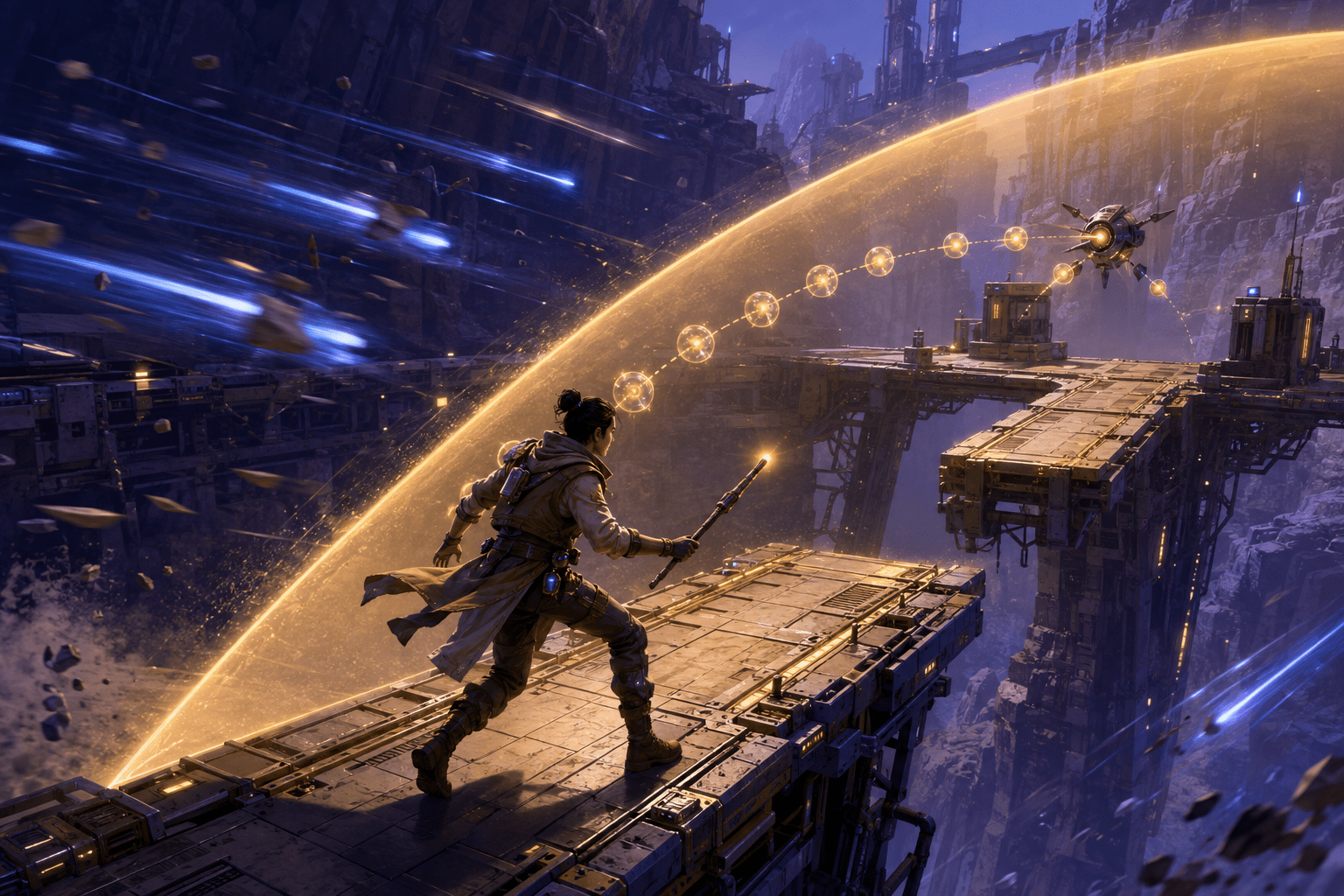
Fast action games often combine several forms of time pressure. A player may need to recognize an incoming attack, choose a response, move the camera, press the correct input, and recover before the next threat arrives. Platforming adds its own timing demands through jumps, wall movement, aerial adjustments, and moving hazards. Star Wars Jedi: Survivor addresses both areas with Slow Mode, a gameplay modifier that reduces the speed of the action rather than merely lowering enemy damage.
EA describes Slow Mode as an option for slowing the game world to ease the challenge of combat and platforming. The current accessibility documentation includes manual and automatic activation, adjustable slow dilation, several shortcut presets, and a remappable Slow Mode input. This makes it more flexible than a single permanent speed setting, but it remains timing assistance rather than automatic completion.
What Slow Mode does
Slow Mode reduces the speed of gameplay while it is active. EA lists preset shortcut choices of 30%, 50%, and 75%, as well as a custom option controlled through the Slow Dilation slider. The feature can be switched on and off, placed in the game’s shortcut menu, or assigned directly to an input through control remapping.
The game also provides Auto-Activated Slow Mode in Combat. When that option is enabled, slow motion activates automatically as Cal enters combat. This is different from having to recognize that a fight has begun and then press another control before the assist becomes useful. Players who want normal-speed exploration but consistently need more response time during fights can therefore target that part of play without manually toggling the feature at every encounter.
Manual activation offers a different kind of control. A player may use Slow Mode for a particular platforming sequence, a fast enemy, or another section with a timing component, then return the game to standard speed. Direct input assignment may reduce the number of steps needed to reach the option, while the shortcut menu allows Slow Mode presets to sit alongside other accessibility shortcuts.
Timing reduction is not timing removal
Slow Mode extends the real-world time available to perceive and respond to events. It does not normally stop the world and wait indefinitely for the player. Attacks continue, moving elements continue along their paths, and a jump still develops after the player initiates it. The relevant windows become longer because the action is slower, but the sequence remains active.
This distinction separates time dilation from pause-based assistance. A true pause would remove immediate time pressure until the player chose to continue. Slow Mode instead reduces that pressure by changing the rate at which events unfold. A player who needs unlimited time to make each decision may still find the remaining movement too demanding, even at the most useful available setting.
Slowing an event also does not guarantee the correct response. The player still needs to identify an attack, decide whether to parry, evade, block, or reposition, and provide the relevant input. During traversal, the player still chooses a direction, initiates a jump, and controls movement. Slow Mode may make those actions easier to coordinate without performing them automatically.
How it differs from combat difficulty
Star Wars Jedi: Survivor has five combat difficulty levels. EA explains that these alter factors such as parry timing, enemy damage, and enemy aggressiveness. Story Mode provides generous parry timing and minimal enemy damage, while higher settings tighten timing and increase pressure from opponents.
Slow Mode changes the pace of action more broadly. It can assist during platforming as well as combat, whereas combat difficulty is directed at encounters with enemies. Lowering the difficulty may make mistakes less costly or change how aggressively enemies behave, but it does not serve the same purpose as slowing a traversal sequence. Conversely, Slow Mode does not document a reduction in enemy damage or an increase in the damage Cal deals.
The two systems can be combined. A player may select a combat difficulty that provides a useful damage and parry balance, then use Slow Mode to obtain additional response time. Someone may prefer a higher difficulty’s combat values while slowing the action. Another player may use Story Mode and Slow Mode together because both the consequences of mistakes and the speed of events create barriers.
Possible motor and cognitive uses
Slow Mode may support players whose movements require more preparation or execution time. This can include people using alternative input arrangements, players who cannot move rapidly between controls, or people whose coordination, pain, fatigue, tremor, or range of motion makes short response windows unreliable. Because individual access needs vary, slower action will not produce the same benefit for every person with a particular impairment.
The additional time may also reduce some cognitive demands. Fast combat requires continual attention switching between the player character, enemies, attack cues, health, positioning, and the surrounding environment. Slowing the sequence can provide more time to locate the relevant information and decide what to do next. It may help a player who understands each element separately but becomes overloaded when several changes happen in rapid succession.
Automatic combat activation may be especially relevant when remembering to enable an assist is itself a barrier. It removes one preparatory step from the start of combat. However, it does not automatically activate Slow Mode for every non-combat timing challenge. Platforming use may still require manual activation or a shortcut, depending on how the player has configured the feature.
Using presets, custom dilation, and shortcuts
The 30%, 50%, and 75% shortcut choices allow different degrees of slowdown to be reached without repeatedly adjusting a slider. A player might use a moderate reduction when they want to preserve a faster rhythm and a stronger reduction for a difficult sequence. The custom Slow Dilation option allows finer adjustment when the presets do not match the player’s preferred pace.
EA’s documentation identifies these values as Slow Dilation presets, but percentage labels can be interpreted differently across games. The safest practical approach is to preview the choices in play rather than assuming that a particular percentage will feel like a specific mathematical reduction. What matters for access is whether the resulting pace provides enough usable response time.
Slow Mode, its presets, and several other features can be added to the Shortcut Controls menu. The same system can provide access to Audio Ping, High Contrast Mode, Puzzle Hint, and Navigation Assist Ping. This groups situational tools together, although opening an on-screen shortcut menu still adds an interaction step. Players who require faster access can assign Toggle Slow Mode directly in the control-remapping section.
Combining Slow Mode with related settings
Slower action does not reduce every input demand. Button Mash Options can be set to Automatically Succeed for button-mashing and quick-time events, addressing repeated rapid presses more directly. Toggle Hold Pull changes Force Pull from a sustained hold into an action controlled with a single press. These settings modify input execution, while Slow Mode modifies the time in which gameplay events occur.
Auto-Lock Target in Combat and automatic target switching can reduce some targeting demands. Camera Follow Lock adjusts how strongly the camera follows Cal. Combining one of these settings with Slow Mode may be more useful than slowing combat while still requiring difficult simultaneous character and camera control.
For traversal, Disable Fall Damage prevents a fall from reducing health after Cal respawns, but EA explicitly states that it does not prevent the respawn itself. Slow Mode may provide more time to perform a jump; Disable Fall Damage changes part of the consequence when a fall occurs. Neither option guides the player through the route or completes the platforming sequence.
Navigation Assist and Navigation Assist Audio Ping address route finding rather than timing. Force Interaction Hints identify which Force ability is needed for environmental puzzles. These may be combined with Slow Mode when a section requires both understanding where to go and executing a timed movement once the route is known.
Remaining barriers and trade-offs
Slow Mode changes pace, not the quantity of visual information. Combat can still contain bright effects, rapid camera changes, multiple enemies, particles, and complex backgrounds. The action may remain visually busy for longer because the slowed sequence takes more real-world time to complete. Camera Shake, Ambient Camera Sway, Motion Blur, Film Grain, and Chromatic Aberration have separate controls that may be relevant to sensory or motion-related barriers.
Longer real-world encounter duration can also be a trade-off. A substantial slowdown may reduce reaction pressure while increasing the time a player must sustain attention, maintain posture, or continue operating the controls. A player affected by fatigue may need to balance the value of longer response windows against the cost of extending a fight or traversal sequence.
The feature does not remove precision requirements, guarantee successful parries, prevent all damage, or eliminate the possibility of falling. It does not replace puzzle understanding or navigation assistance. Its automatic mode is specifically documented for combat, so it should not be described as automatically recognizing and slowing every timed section elsewhere in the game.
Platforms and current documentation
Star Wars Jedi: Survivor is available on PC, PlayStation 5, PlayStation 4, Xbox Series X|S, and Xbox One. The PlayStation 4 and Xbox One editions arrived after the original PC and current-generation console release. EA advises players to keep the game updated so that all available accessibility settings are present.
EA’s official accessibility resource for Star Wars Jedi: Survivor documents Slow Mode, automatic combat activation, the Slow Dilation control, shortcut presets, remapping, and related gameplay modifiers. The page is more precise than a general feature list and should be consulted when setting up the game for a particular access need.
More time while play remains active
Slow Mode can reduce reaction and coordination pressure across both combat and platforming. Its automatic combat behavior, direct remapping, presets, and custom dilation make it possible to use the assist continuously or only where it is needed. It is more than a lower difficulty setting because it changes the pace of timed play beyond enemy encounters.
Access needs vary, and slowing a sequence may introduce longer encounters or leave other motor, visual, cognitive, and sensory demands intact. The feature provides more time to act; it does not remove timing entirely, select the correct action, or complete combat and traversal for the player.