
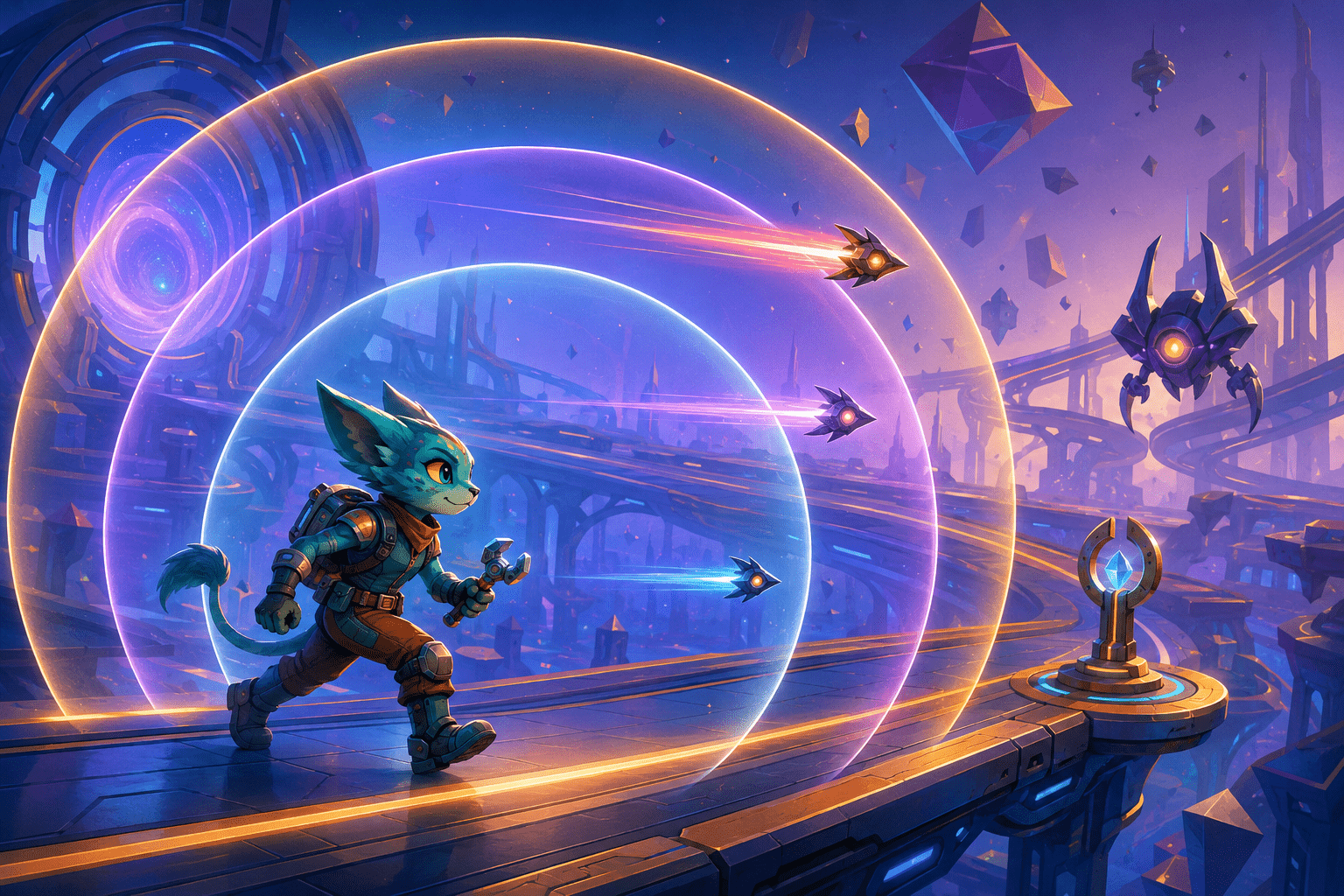
Ratchet & Clank: Rift Apart allows players to reduce gameplay speed to 70%, 50%, or 30% through an accessibility shortcut. Pressing the shortcut again restores ordinary speed.
This gives players more time to interpret action, aim, select a response, and perform an input. It does not automatically control the character, choose the correct action, or remove every timing demand.
Three Speed Levels
Seventy percent retains much of the original pace, 50% provides a substantial reduction, and 30% creates the longest response window. Different encounters can therefore use different degrees of adjustment.
Shortcut Activation
The selected speed can be assigned to one of four accessibility shortcut slots. It can be activated during a demanding section without repeatedly navigating through the full options menu.
The shortcut shares limited slots with other accessibility actions, so players may need to choose which functions require immediate access.
What Slower Gameplay Changes
Reducing speed can provide more time to track enemies, distinguish projectiles, move the camera, recognize attack patterns, choose weapons, and plan an escape route. It can also spread simultaneous demands across a longer interval.
The setting continues moving the game rather than pausing it. Enemies, projectiles, hazards, and the player character remain active at the selected rate.
Limits
Game speed returns to 100% during cutscenes. More time also does not necessarily make an action physically accessible when the barrier involves button reach, sustained holds, repeated presses, or simultaneous inputs.
Traversal Assistance
Simplified Traversal places Rift Tether, Swingshot, Phantom Dash, and Hoverboots on a single button. Auto Glide, Hoverboot Auto-Pump, Flight Assist, traversal toggles, and Off-Screen Ledge Guard reduce other movement demands.
These assists address inputs after the player recognizes a traversal opportunity; they do not automate all navigation or platforming.
Combat and Visual Options
Aim Assist, Strong Aim Assist, Auto Aim, Lock On, firing toggles, and one-press combat shortcuts can reduce targeting and input demands. Motion blur, depth of field, chromatic aberration, film grain, full-screen effects, and screen shake can be adjusted separately.
Combining the Settings
A player could use 50% speed with Lock On and a melee-combo shortcut. Another could retain full-speed exploration but activate 30% speed during crowded combat and reduce screen shake.
The settings separate response time, visual tracking, aiming precision, sustained input, traversal complexity, and sensory effects instead of treating them as one barrier.
Last verified: August 3, 2026.
Access needs vary. Review the official accessibility documentation for the complete settings and current platform details.