
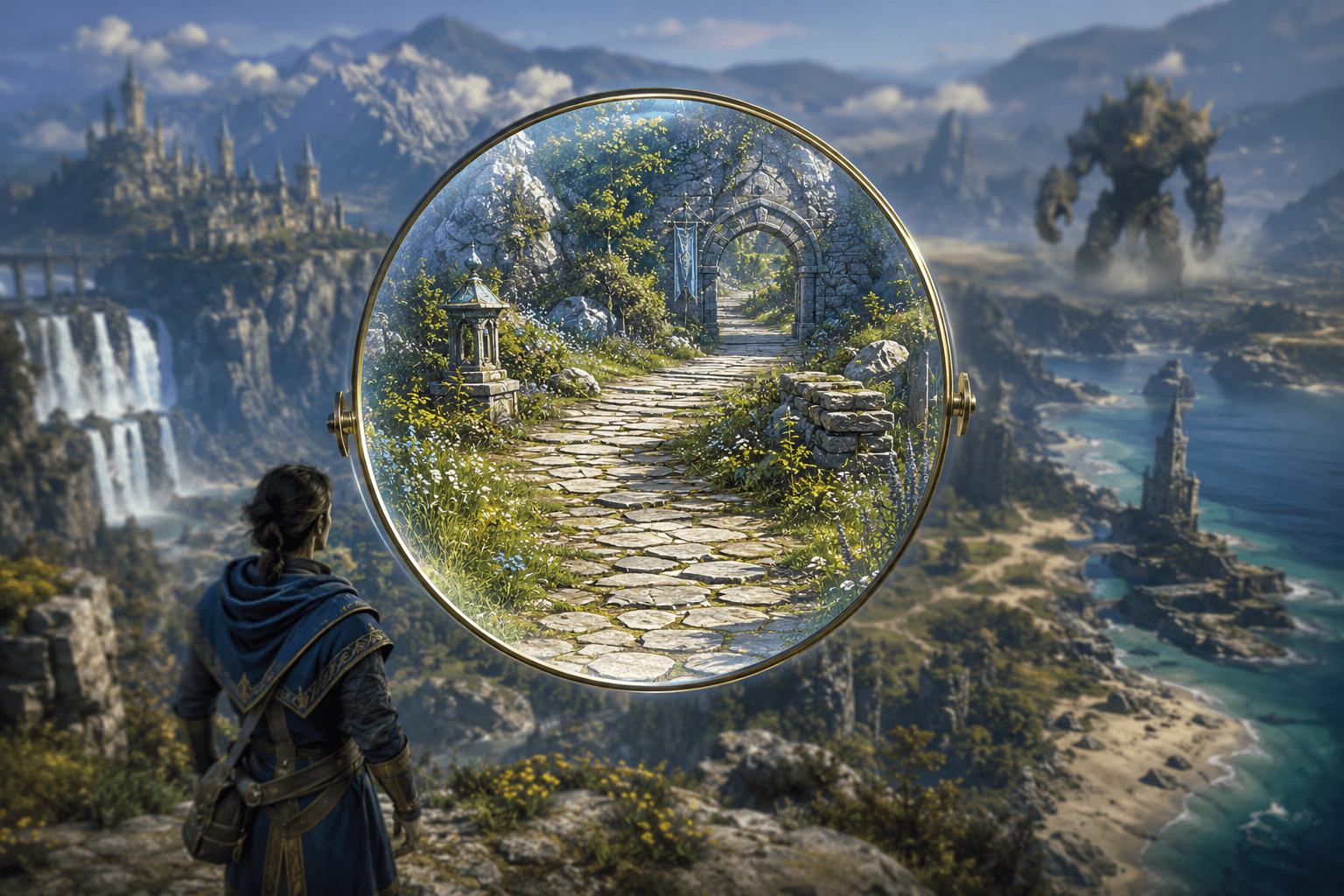
Small interface text, inventory symbols, maps, distant objects, and compact menus can remain difficult to see even on a large display. Moving closer to a television may be uncomfortable or impossible, while changing a game’s resolution does not necessarily increase the physical size of its interface.
PlayStation 5 includes a system-level Zoom feature that magnifies part of the displayed image. Once enabled, the player can activate it with a controller shortcut, cycle through magnification levels, choose the display area, and continue operating the console or supported game while the enlarged view remains active.
The feature is broader than an in-game magnifier because the console performs the enlargement. It can work with content that does not provide its own zoom setting. However, system-level magnification cannot recover detail that was never rendered clearly, reorganize a game’s interface, or keep the entire original image visible at once.
Magnification makes one area larger by excluding more of the surrounding image. That field-of-view trade-off is the central practical limitation of PS5 Zoom.
Zoom enlarges the rendered screen rather than redesigning it
A game can support large text by increasing its font size and allowing menus to reflow around the larger words. It can increase icon size while keeping other information in place. These are interface-level changes created by the developer.
PS5 Zoom takes the existing output and magnifies a portion of it. Text, icons, characters, and scenery inside the selected area become physically larger, but their underlying design does not change.
If text has low contrast, magnification does not improve that contrast. If an icon is distinguished only by colour, Zoom does not add a shape or label. If the original image is blurred, heavily compressed, or missing detail, enlargement may make the blur larger rather than making it clear.
The feature may still make a meaningful difference when the primary barrier is size. A small map symbol, item description, button prompt, or distant environmental detail can occupy more of the display without requiring the game to include native magnification.
The controller shortcut begins magnification
Zoom must first be enabled through Settings, Accessibility, Display and Sound, and Zoom. After Enable Zoom is turned on, the feature can be activated on the screen the player wants to enlarge.
Pressing the PS button and square button together opens the zoom-adjustment state. Repeating the same button combination cycles the magnification until the desired level is reached.
The player then presses the cross button to confirm. PlayStation states that the magnification and display area remain set and that console operations can continue while zoomed in.
This is not a temporary still-image viewer. The player can use supported interactive content while the magnified area remains active. Movement, menus, and gameplay continue rather than freezing behind the enlarged image.
The shortcut itself requires simultaneous input
Activating Zoom requires the PS and square buttons to be pressed at the same time. The same combination is used repeatedly to move through magnification levels.
This may create a motor barrier for someone who cannot comfortably reach both controls, perform simultaneous inputs, or maintain a stable grip while changing the view. System-level button reassignment does not necessarily turn a two-button accessibility shortcut into a single action.
The Access controller, a DualSense controller used collaboratively through Second Controller for Assistance, or another compatible control arrangement may help some players produce the shortcut. Compatibility and configuration still need to be tested for the individual setup.
Zoom therefore addresses a visual barrier while retaining a potentially significant input demand. An accessibility feature can be useful in one domain without being independently accessible in every other domain.
Magnification can be adjusted in steps
PlayStation describes magnification as changing with each press of the PS and square shortcut. This stepped approach avoids requiring a precise analogue adjustment for the zoom level.
Each higher level enlarges the selected content further. At the same time, less of the original image fits on the display. A moderate level may make text readable while retaining useful context; a stronger level may expose small detail but leave only a narrow part of a menu or scene visible.
The best level can change according to the task. Reading an item description may require more enlargement than following a character through an environment. A static menu may tolerate substantial cropping, while fast combat may require a wider view.
PS5 does not automatically determine which element the player intends to inspect. The selected magnification applies to the chosen display area, not semantically to a particular word, character, or interface control.
Manual panning uses the right stick
When Adjust Display Area to Movement is disabled, the right stick moves the magnified display area. This lets the player inspect different parts of the underlying image without ending Zoom.
Manual panning can support close reading of a map, menu, skill tree, or static scene. The player can move from one enlarged region to another at their own pace.
It also adds a navigation task. Because the full image is no longer visible, the player must remember where information is located, move the viewport toward it, and recognize when the desired area enters view.
Someone with a limited range of motion, tremor, or difficulty using the right stick may find repeated panning demanding. Stick remapping and sensitivity options may affect the broader controller setup, but Zoom does not provide a documented independent panning-speed control.
Adjust Display Area to Movement can follow activity automatically
The optional Adjust Display Area to Movement setting allows the magnified display area to move automatically with the player’s movement while Zoom is active.
This can reduce the need to pan manually during console navigation or supported interactive activity. As the focus or controlled movement changes, the visible area can follow instead of remaining fixed on the previous location.
Automatic tracking is not the same as identifying the most important information. The feature follows movement rather than understanding that a player wants to monitor health, subtitles, an off-screen enemy, or a particular menu description.
The resulting viewport motion may also be uncomfortable for players sensitive to moving or automatically corrected images. A fixed area with manual panning can offer more predictable movement, but it requires additional input.
Automatic tracking does not work everywhere
PlayStation documents an important exception: when certain features are in use, including gameplay and disc-based media, the display area may not move even when Adjust Display Area to Movement is enabled.
This means the option’s name should not be interpreted as a guarantee that the viewport will track a playable character throughout every game. Behaviour can depend on the content and how PS5 handles that output.
When automatic movement does not occur, the player may need to return to adjustment and reposition the magnified area manually. During a fast game, that can interrupt play or leave important information outside the current view.
An in-game magnifier or interface scaling feature may track game elements more intelligently because it has access to the game’s internal state. System Zoom sees the final image but does not necessarily know which object is the player character or which warning is urgent.
The cropped field can hide important peripheral information
At ordinary scale, the display can show a character in the centre, health in one corner, objectives in another, subtitles near the bottom, and enemies entering from the edges. Magnification may make the central character easier to see while moving some or all of those other elements beyond the visible area.
This is often manageable in a static interface. The player can pan to read one section and then another. In real-time play, information may change while it is outside the magnified viewport.
An off-screen attack indicator, low-health warning, dialogue choice, timed prompt, or newly appearing enemy can be missed. The visual barrier shifts from insufficient size to reduced simultaneous awareness.
Zoom therefore does not make every game fully accessible for low-vision players. It can provide close inspection, but games still benefit from native large text, scalable interfaces, strong contrast, audio alternatives, and warnings that remain perceivable under magnification.
Zoom is different from changing text size
PS5 separately provides system Text Size settings, including four sizes identified by Sony as small, normal, large, and very large. It also offers Bold Text and High Contrast options for supported console-interface elements.
Text Size changes supported text without necessarily enlarging every surrounding image. Zoom enlarges everything inside its selected area, including text, icons, backgrounds, and empty space.
Increasing text size may preserve more of the full display and reduce the need for panning. Its coverage is limited to interface elements that respond to the system setting. A game may use its own text rendering and ignore the console-level size preference.
The settings can be combined. Larger or bolder system text may improve supported menus, while Zoom remains available for game interfaces or images that do not respond.
Zoom is not a screen reader
The PS5 Screen Reader speaks supported on-screen text and provides spoken guidance for operating the console. Zoom leaves information visual and makes part of it larger.
A player who cannot read enlarged text may require the Screen Reader instead of, or alongside, magnification. Conversely, someone who wants to inspect artwork, icons, maps, or spatial layout may obtain information from Zoom that text-to-speech cannot describe.
The PS5 Screen Reader is limited to supported console content and specified languages. It does not narrate every menu or visual element inside every game.
Neither feature replaces comprehensive in-game screen narration. They are system-level tools with different forms of partial coverage.
Web cards distinguish Zoom from Magnify
PS5 cards that display web pages provide two related commands: Zoom and Magnify. PlayStation documents them separately.
Within those cards, Zoom enlarges text or images without changing the window’s size. The page layout may change as content reflows. The L3 and R3 buttons adjust this web-card zoom level.
Magnify enlarges what is already displayed without changing the page layout. Because the layout remains fixed, the player may need to scroll left, right, up, or down to inspect the complete page.
Reflow can preserve reading order and reduce horizontal panning, but it may reposition surrounding elements. Fixed-layout magnification preserves spatial relationships while exposing less of the page at once. These card-specific controls are different from the PS-and-square system Zoom procedure.
Remote Play disables system Zoom
PS5 Zoom is unavailable during Remote Play. A player streaming the console to a PC, Mac, phone, tablet, or another supported Remote Play device cannot rely on the console’s Zoom function in that session.
The receiving device may have operating-system magnification, browser zoom, or other display tools. Those features magnify the streamed image after transmission and have their own controls and limitations.
This restriction is meaningful for players who use Remote Play specifically to bring the image closer on a personal screen. They may gain physical proximity while losing PS5’s built-in magnification shortcut.
Remote Play can also introduce compression and latency, which may affect image clarity. Device-level enlargement cannot restore detail lost in the streamed image.
Sharing and broadcasting are incompatible
Zoom is unavailable while broadcasting and while sharing the screen through Share Screen or Share Play.
A player cannot use system Zoom during those activities and assume that viewers will receive either the original or enlarged presentation. The feature must be ended before the incompatible sharing function can operate.
This can affect accessible collaboration. A player may want Zoom while another person watches through Share Screen to provide guidance. PS5 does not support that combination through its documented system functions.
Share Play can also allow another participant to interact with a game, but it is not a replacement for local magnification. It depends on network access, another participant, and PlayStation’s sharing requirements.
PlayStation VR and PS5 Pro 8K output are excluded
System Zoom is unavailable while PlayStation VR is in use. The console’s flat-screen magnification system is not presented as a VR accessibility feature and does not magnify the headset view.
It is also unavailable during 8K output on PS5 Pro consoles. A player using PS5 Pro at that output mode must choose between 8K output and the system Zoom function.
Higher output resolution can improve detail on a compatible display, but it does not automatically make text physically larger. A very sharp small label can remain too small to read.
Changing the PS5 Pro output configuration may therefore be necessary when magnification is more important than retaining 8K output.
Platform coverage stops at PS5
This implementation is a PlayStation 5 console feature. It applies to standard PS5 consoles, PS5 Digital Edition models, and PS5 Pro subject to the documented output restrictions.
It is not a setting for Windows PC, Xbox, Nintendo Switch, or mobile platforms. PS4 has its own accessibility environment, but this article concerns the current PS5 procedure and behaviour documented by PlayStation.
Games played through backward compatibility on PS5 may still be shown through system Zoom, but the underlying PS4 game does not gain native large-text, reflow, or low-vision features as a result.
The feature is available without purchasing additional accessibility hardware, though activation and panning depend on a compatible PS5 controller arrangement.
Close inspection with a significant awareness cost
PlayStation’s official PS5 accessibility guide documents how Zoom is enabled, adjusted with PS and square, positioned manually or through movement tracking, and ended through the same adjustment interface.
System-level magnification may make unsupported game text, small symbols, maps, and distant details easier to inspect. It can be combined with Text Size, Bold Text, High Contrast, colour correction, and the Screen Reader according to the content and the player’s needs.
Access needs vary, however. PS5 Zoom enlarges rather than redesigns the image, reduces the visible field, can hide changing peripheral information, may require simultaneous and repeated controller inputs, does not automatically track gameplay in every context, and is unavailable during Remote Play, broadcasting, screen sharing, PlayStation VR, and PS5 Pro 8K output.