
Subtitles make spoken dialogue visible, but they do not necessarily communicate the other sounds that influence play. A door opening nearby, an approaching creature, a mechanical event, or another important sound effect may have no spoken words to subtitle.
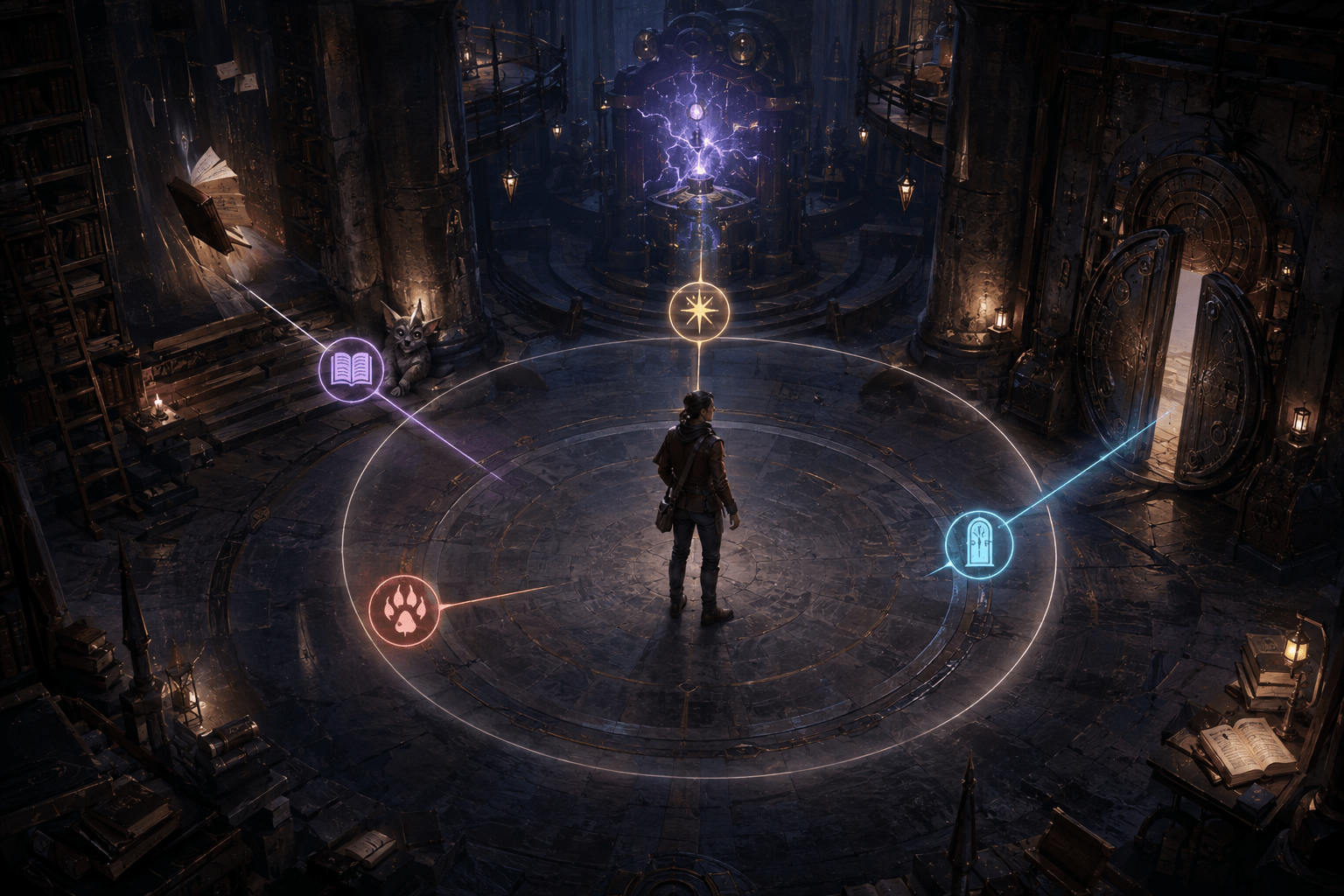
Hogwarts Legacy includes an Audio Visualizer that displays supported key sound effects through icons arranged on a wheel around the player’s character. The system provides a visual alternative for selected audio information during gameplay rather than limiting text access to dialogue.
The visualizer is not a complete transcription of the game’s soundscape. WB Games describes it as covering key sound effects, which means players should not assume that every footstep, environmental sound, musical change, incidental noise, or distant activity receives an icon.
Its usefulness comes from three connected parts: the visualizer presents supported sounds through pictorial icons, an Audio Visualizer Icon Key explains those symbols, and players can adjust icon size and transparency.
Why subtitles are not enough
Subtitles primarily represent speech. They allow players to read dialogue that would otherwise need to be heard, and speaker information can help identify who is talking. Hogwarts Legacy turns subtitles on by default and ties speaker indicators to important character lines.
A sound effect contains different information. It may tell a player that an object moved, an event began, a threat became active, or something occurred outside the current camera view. There may be no sentence to display and no speaker to identify.
Closed captions can describe non-speech sounds in words, but not every game uses a conventional caption line for gameplay audio. Hogwarts Legacy instead uses an icon-based visualizer for supported sound effects.
This creates a meaningful distinction between reading what someone said and recognizing that an event made a sound. Subtitles and the Audio Visualizer may be used together because each represents a different part of the auditory experience.
Neither system should be treated as complete on its own. Dialogue subtitles do not replace sound-effect visualization, while pictorial sound icons do not preserve the wording, tone, or speaker details contained in dialogue.
How the visualizer is presented
WB Games describes the Audio Visualizer as a wheel around the avatar during gameplay. Supported sound effects appear as icons within that surrounding visual area rather than only as a conventional caption at the bottom of the screen.
This placement keeps the information associated with the character’s immediate gameplay context. The player does not have to look exclusively toward a distant corner of the heads-up display to check whether a supported sound icon has appeared.
A surrounding wheel can also organize multiple potential cue positions without using a long text list. The player can recognize the icon type and its placement around the character as part of a compact visual presentation.
The official documentation does not claim that the visualizer provides a precise measurement of distance, elevation, or the complete three-dimensional location of every sound. An icon should not be treated as a full substitute for spatial audio. It communicates that a supported sound effect has occurred through the visualizer’s designed presentation.
The system also does not move the camera toward an event or automatically identify the safest response. The player must notice the icon, recognize its meaning, interpret it within the current environment, and decide what to do.
The importance of distinct icons
A visual sound system must communicate more than the fact that “something happened.” Different symbols allow supported sound categories to remain distinguishable.
If every cue used the same flashing marker, a player might know that a sound occurred without knowing whether it related to an environmental interaction, a creature, or another type of event. Pictorial icons can preserve some of those differences without requiring the player to read a full caption during active play.
Icon recognition may also be faster than reading a sentence once the symbol set is familiar. A recurring shape can develop a consistent meaning across repeated encounters.
This benefit depends on the icons being visually distinct and understandable. Similar silhouettes, small details, low contrast, or unfamiliar imagery can make two cues difficult to separate. A symbol is not automatically accessible merely because it is visual.
Players may also need time to learn the system. A new icon can communicate very little if the player has not yet discovered what it represents. Hogwarts Legacy addresses this through a separate Audio Visualizer Icon Key.
What the Audio Visualizer Icon Key provides
The Audio Visualizer Icon Key is available within the Accessibility Options. It acts as a legend for the icons used by the visualizer.
A legend converts an unfamiliar symbol into an explained category. Instead of requiring the player to infer an icon’s meaning through trial and error, the game provides a place where supported symbols can be reviewed.
This may support players who have difficulty remembering new visual vocabulary or who want to understand a cue before relying on it during a time-sensitive event. It can also help distinguish icons that initially appear similar.
The legend does not make the visualizer self-explanatory in every situation. A player still has to connect the reviewed symbol with its appearance during gameplay. If several cues occur close together, recognising each icon may require attention and working memory.
A static key also cannot reproduce every environmental context in which a cue appears. Knowing an icon’s category does not necessarily explain which specific object produced the sound, how far away it is, whether a wall blocks the route, or what action should follow.
Icon size and visual readability
The Audio Visualizer allows players to customize icon size. This can make supported cues easier to notice or distinguish, particularly when playing at a distance from the screen or against a detailed environment.
Larger icons may reduce the need to identify small internal details. They may also remain more visible during camera movement, combat effects, or visually dense scenes.
Increasing size carries a trade-off. Larger icons occupy more of the gameplay view and may cover environmental information. If several supported sounds appear near the same time, enlarged symbols may create additional clutter or compete with other interface elements.
A smaller setting can preserve more of the environment but may be difficult to identify quickly. The most useful value will depend on screen size, viewing distance, visual acuity, attention, and the player’s tolerance for interface density.
Icon scaling is separate from the game’s broader text-scaling option. Enlarging text does not necessarily enlarge pictorial Audio Visualizer cues, which is why independent icon-size control is useful.
Transparency changes prominence, not coverage
Players can also adjust the visualizer icons’ transparency. This controls how strongly the icons stand out over the game world.
A less transparent icon may be easier to perceive against changing scenery. It can maintain a clearer silhouette when the environment includes bright light, detailed textures, moving foliage, or visual effects.
A more transparent presentation may feel less intrusive for players who want the visual information available without having it dominate the screen. It can reduce the apparent weight of the interface while preserving the cue.
Transparency does not change which sounds are supported. Making an icon fully prominent cannot add cues for sounds the system does not visualize. It also does not alter the duration, frequency, or meaning of the underlying sound.
High visibility is not always the most comfortable setting. Bright or opaque icons that appear repeatedly can increase visual load. Players with sensory sensitivities, attention differences, or difficulty filtering competing visual stimuli may prefer a subtler presentation even if it requires more deliberate monitoring.
How it differs from a directional attack indicator
Some games display an arrow when an enemy prepares an off-screen attack. That system is tied to a particular combat event and usually tells the player where the attack is coming from.
The Audio Visualizer in Hogwarts Legacy is described more broadly as displaying key sound effects. It is not documented as an attack-only warning system.
This difference affects what the player should infer. The appearance of a sound icon does not necessarily mean that an attack is imminent. Its meaning depends on the symbol identified in the Audio Visualizer Icon Key and the current gameplay context.
Conversely, the visualizer should not be assumed to represent every dangerous action. An attack may be communicated through animation, an interface warning, controller feedback, or another visual effect rather than a supported sound icon.
Players still need to use the game’s other combat and environmental cues. Audio visualization adds another channel for selected information; it does not consolidate every hazard into one warning wheel.
How it differs from proximity visualization
A proximity visualizer represents how near a threat or sound source is, often by increasing a pulse’s intensity as the distance decreases. Dead by Daylight’s Visual Terror Radius is an example of a system focused on one changing proximity signal.
Hogwarts Legacy uses differentiated icons for key sound effects. The visual vocabulary is therefore designed to communicate sound type rather than only the increasing strength of a single warning.
The official WB Games description does not promise exact distance values. Players should not interpret an icon as a measurement unless the game clearly communicates that relationship through its presentation.
This limitation is important when an event occurs outside the camera view. The visualizer can make the supported sound perceptible without necessarily revealing the complete route to its source.
Potential hearing and cognitive benefits
The Audio Visualizer may support deaf and hard-of-hearing players by making selected sound effects visible. It may also help players who cannot reliably separate important cues from music, dialogue, ambient audio, or competing effects.
A player who uses low sound volume may benefit from having key supported events remain available visually. This can reduce pressure to increase overall volume simply to detect a quieter gameplay cue.
The icon system may also support some players with auditory-processing differences. A consistent visual symbol can offer another way to identify an event when its sound is difficult to interpret or remember.
Individual responses will vary. Some players process written captions more easily than symbols. Others may find that icons appearing around the character divide attention between the environment and the visualizer.
Players who depend on auditory information for spatial orientation may find icon-based representation less detailed than the original sound. A symbol can communicate category while losing qualities such as tone, rhythm, reverberation, movement, and precise spatial position.
Combining the visualizer with other audio settings
Hogwarts Legacy provides separate volume controls for music, sound effects, and dialogue. These sliders can be used alongside the Audio Visualizer.
A player might reduce music so that dialogue and environmental effects are easier to distinguish while keeping visual icons enabled as backup information. Another player might mute sound effects for sensory comfort and rely on the visualizer for the supported cues that remain represented.
This does not create complete equivalence. Muting sound effects removes every auditory detail in that channel, while the visualizer displays only selected key sounds. Unsupported information may be lost.
The game also supports spatial audio for different speaker arrangements. Spatial audio and the visualizer are alternatives only in a limited sense. Spatial audio supplies auditory location and environmental character; the visualizer supplies selected visual symbols. Some players may use both channels together.
Subtitles remain necessary for spoken dialogue. Enlarging interface text can also increase subtitle size, but it does not replace visual sound-effect icons.
Visual and sensory costs
Adding icons around the avatar increases the amount of information presented over the game world. During a visually complex encounter, the player may already be monitoring enemies, spell effects, health, objectives, prompts, and environmental movement.
Audio Visualizer cues can make sound information accessible while also contributing to interface density. Adjustable size and transparency help manage that cost but do not allow the player to redesign the complete presentation.
The icons may be particularly noticeable because they need to appear quickly enough to correspond with sound events. Repeated appearances can pull attention away from the central action. This may help a player who needs a strong warning and distract someone who does not.
The feature is optional, allowing players to decide whether the additional channel improves access. Individual configuration is important because increased visibility and reduced visual load are competing goals.
Platform availability and related restrictions
Hogwarts Legacy is available on Windows PC, PlayStation 4, PlayStation 5, Xbox One, Xbox Series X|S, Nintendo Switch, and Nintendo Switch 2. WB Games lists the Audio Visualizer without the platform exclusions attached to certain other accessibility features.
Those exclusions should not be confused with the Audio Visualizer. For example, the game’s menu Text-to-Speech feature is specifically unavailable on Nintendo Switch and Nintendo Switch 2. The display settings available on the Nintendo versions also differ from other platforms.
The accessibility page separately identifies motion-sensor flight as available on PlayStation 5 and Nintendo Switch 2, with Joy-Con 2 mouse-sensor input exclusive to Nintendo Switch 2. These input differences do not change the Audio Visualizer’s purpose but demonstrate why accessibility availability should be checked feature by feature rather than assumed from a general platform list.
A visual channel for selected gameplay sounds
Hogwarts Legacy’s Audio Visualizer makes supported key sound effects visible through icons on a wheel around the player character. Its icon legend explains the visual vocabulary, while size and transparency controls allow some adjustment to readability and screen prominence.
The feature and its customization options are documented on the official Hogwarts Legacy accessibility page.
Access needs vary. The Audio Visualizer may reduce reliance on hearing for selected gameplay sounds, but it does not caption every effect, provide complete spatial-audio detail, explain the correct response, or remove the need to interpret the surrounding environment.