
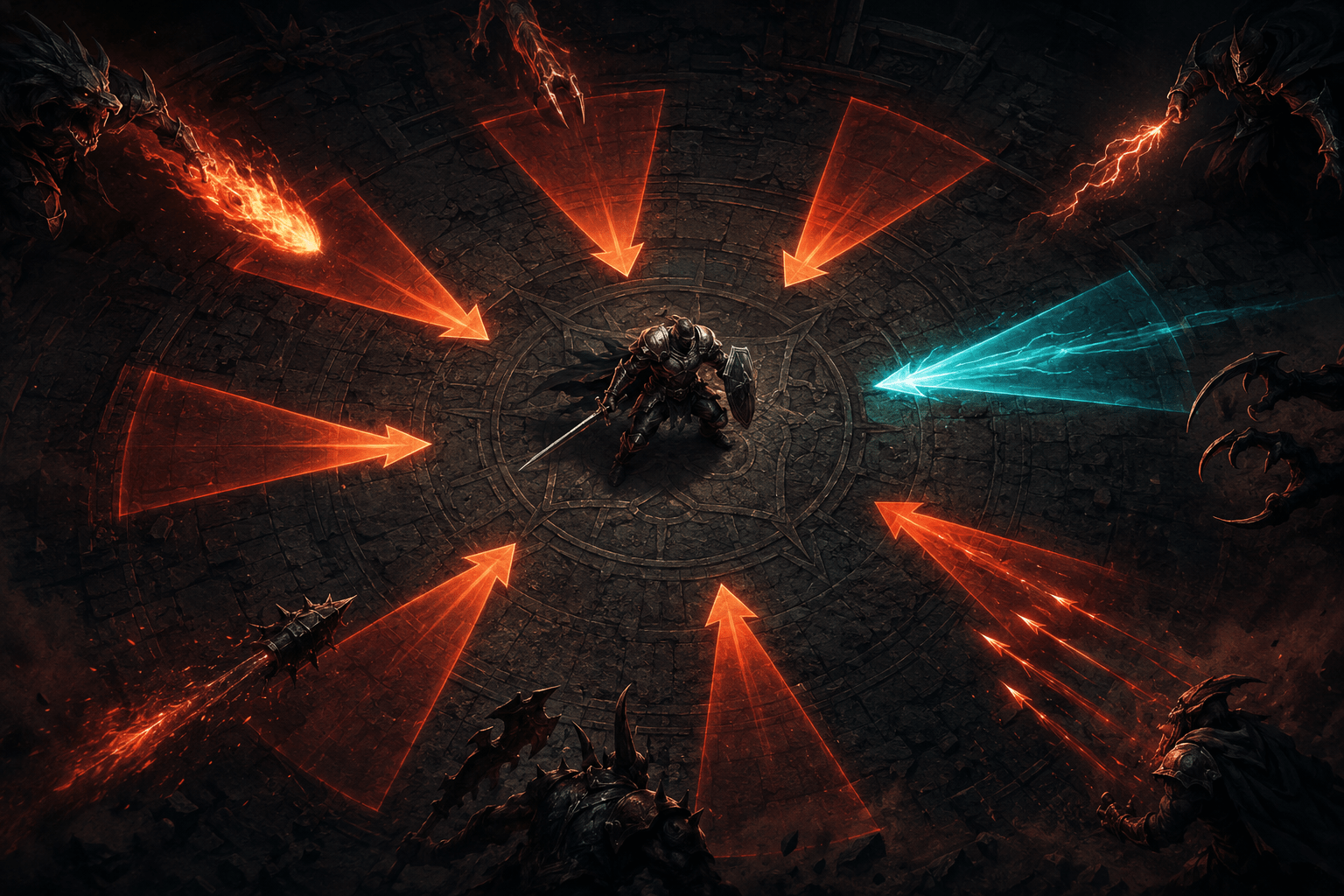
Combat information in a first-person action game extends beyond what is visible in front of the player. Enemies can attack from the sides or behind the camera, and a player may be expected to recognize direction, urgency, and attack type from spatial sound. When multiple enemies act at once, missing one off-screen cue can result in damage before the player knows where the threat originated.
DOOM: The Dark Ages includes a Threat Detector setting that converts selected incoming enemy attacks into directional interface elements. Bethesda’s official accessibility guide states that the indicators include threats from enemies who may be off-screen.
The setting provides two enabled states rather than a single visualizer. On displays indicators for every type of incoming enemy threat. Only Show Parryable Attacks restricts the indicators to incoming attacks that the player can parry. This distinction allows the system to provide broad attack awareness or narrower information focused on a specific defensive action.
What the Threat Detector Communicates
When enabled, Threat Detector presents interface elements for incoming enemy attacks. Their placement communicates the direction from which a threat is approaching, including attacks originating outside the current camera view. The official example shows multiple indicators and uses a separate colour to distinguish an attack that can be parried.
The feature therefore translates part of an auditory and spatial combat signal into a visual form. A player does not have to rely entirely on hearing an enemy outside the frame or locating the direction of that sound through stereo or surround audio.
The indicators do not reveal the complete battlefield. Threat Detector is described in relation to incoming attacks, not the general location of every enemy. An enemy who is present but not producing a supported threat should not be assumed to receive a persistent directional marker.
It also does not automatically turn the camera. The player remains responsible for deciding whether to rotate, move, block, parry, or continue attacking another target. The detector communicates that a threat is coming and where it is coming from; it does not perform the response.
All Threats Versus Parryable Attacks
Setting Threat Detector to On provides directional indicators for all types of incoming enemy threats. This is the broadest version of the system and may be useful when the primary barrier is awareness of attacks outside the visible scene.
The additional information can carry a visual cost. DOOM: The Dark Ages has fast combat, numerous enemies, projectiles, effects, pickups, and existing interface elements. Showing every incoming threat can add more visual signals during already dense encounters.
Only Show Parryable Attacks reduces this scope. In that mode, the detector focuses on threats that can be met with the game’s parry action. It can preserve an additional visual signal for this timing-sensitive defensive opportunity without showing every other incoming attack.
This narrower mode does not make non-parryable threats harmless or easier to hear. Those attacks remain part of combat but no longer receive the detector’s directional indicators. Choosing between the modes is therefore a choice between broader awareness and reduced interface density.
Why Direction Matters
A generic warning that an attack is imminent would provide timing information without orientation. Directional placement adds another layer: it can tell the player which side of the off-screen space requires attention.
This may reduce the need to rotate the camera in several directions simply to locate the source. A player can make a more informed decision about where to turn or move. Reducing unnecessary camera searching may also be useful for some people who experience discomfort from rapid camera movement, although the detector itself does not slow or smooth the camera.
Direction is screen-relative rather than a complete navigation route. The indicator can point toward an incoming threat, but it does not explain the surrounding terrain, identify a safe destination, or automatically guide the player around an obstacle.
The player must also interpret the indicator quickly enough to respond. Visualizing sound information does not remove the game’s real-time pace. It changes the channel through which part of that information is delivered.
Which Barriers It May Address
Threat Detector may support deaf and hard-of-hearing players who cannot reliably use attack sounds to recognize danger outside the current view. It may also help when a speaker setup, headphones, room environment, or single-sided hearing makes directional audio difficult to interpret.
Some players with auditory processing differences may hear a warning sound but find it difficult to separate that sound from weapons, music, enemy noise, and environmental audio. A directional visual element can provide redundant information through another sensory channel.
The setting may also help players who have difficulty maintaining awareness of events outside the central focal area. It does not eliminate the need for attention, but it places information about supported threats at the interface level instead of requiring the source itself to be visible.
Individual experiences will vary. More indicators may increase distraction or visual overload for some players. The parry-only mode can reduce that density, but it also removes warnings for other threat types.
Threat Visualization Is Not Captioning
Threat Detector should not be confused with subtitles or captions. Subtitles represent spoken dialogue. Captions can provide text descriptions of non-speech sounds. The Threat Detector uses directional visual elements specifically for combat threats.
This means it can communicate spatial urgency more immediately than a text label, but its vocabulary is narrower. It does not provide written descriptions of every enemy sound, environmental event, mechanical noise, or off-screen action.
Bethesda states that the game provides multiple visualizations for combat-related sound effects and that critical off-screen enemy attack sounds can be displayed when Threat Detector is enabled. During cinematics, the developers aimed to have important sound effects originate from visible sources where possible. These measures do not amount to comprehensive captioning of all non-dialogue audio.
Combining Threat Detector With Colour Settings
The parryable indicator uses a distinct colour in Bethesda’s example. Elsewhere in the accessibility settings, players can enable Parry Recolor and customize parryable attacks using red, green, blue, and alpha controls. The alpha value affects the strength and visibility of the chosen highlight.
Colour should not be treated as the only relevant distinction. The detector’s directional placement communicates where an attack is coming from, while the parry-related colour communicates something about how it can be answered. Players should test whether the selected colours remain distinct from the environment, enemy effects, and other interface information.
The game’s high-contrast system can desaturate the world and apply configurable highlights to categories including enemies, hazards, interactables, pickups, attacks, shield-breakable objects, enemy leaders, and parryable attacks. Bethesda recommends disabling the separate Parry Recolor when World Desaturation is used to avoid colour-setting conflicts.
Threat Detector and high contrast address different information. High contrast can make visible enemies and objects stand out from the world, while Threat Detector can warn about attacks originating outside the view. Combining them may improve both on-screen separation and off-screen awareness, but it also increases the number of visual treatments present during combat.
Combining It With Timing and Speed Adjustments
A visible warning may still pass too quickly for a player to process and answer. DOOM: The Dark Ages allows the parry window to be adjusted, with larger values creating a more forgiving opportunity to parry. When the detector is limited to parryable attacks, a longer parry window can address response timing after the visual cue appears.
Enemy Projectile Speed can slow most enemy projectiles, while the broader Game Speed slider can adjust the game between 50 and 150 percent of its normal speed. Slowing the game can provide more time to notice a directional indicator, determine its meaning, and choose an action.
These settings are not equivalent to Threat Detector. Slower projectiles do not make an inaudible off-screen attack visible. A visual indicator does not necessarily provide more response time. Combining information conversion with timing adjustment can address both barriers separately.
Remaining Sensory and Gameplay Limitations
The system adds information to the screen rather than reducing the game’s underlying combat intensity. Fast movement, flashing effects, enemy highlights, weapons, particles, screen-edge effects, and repeated attacks remain possible. Players sensitive to visual density may need to balance Threat Detector with other display settings.
Screen Effects can be disabled to hide certain effects around the screen edges. Environmental screen shake can be turned off or adjusted, and weapon bob can be disabled, although weapon recoil remains. Motion blur, chromatic aberration, and film grain also have separate controls.
The detector does not support play without sight. Bethesda states that the game does not currently provide screen-reader menu narration or audio-based navigation assistance and that players without sight may require sighted help with menus and gameplay. Threat Detector converts audio-related combat information into visuals, so it primarily addresses missing or difficult-to-interpret sound rather than inaccessible visual information.
The official guide does not document an adjustable indicator size, display duration, position, or opacity specifically for Threat Detector. Those controls should not be assumed to exist. General HUD scaling may affect interface presentation, but Bethesda does not state how it changes these particular indicators.
Platforms and Official Documentation
DOOM: The Dark Ages is available on Xbox Series X|S, Windows PC through the Xbox app and Steam, and PlayStation 5. Bethesda presents Threat Detector as part of the game’s HUD accessibility settings without identifying a platform-specific restriction.
The two detector modes and their behaviour are described in Bethesda’s official DOOM: The Dark Ages Accessibility Guide. The same guide documents the colour, high-contrast, timing, motion, and difficulty options that can be combined with it.
Redundant Information With a Configurable Scope
Threat Detector makes selected incoming enemy attacks visible as directional interface elements, including attacks from outside the camera view. Its full mode visualizes all incoming threat types, while its restricted mode shows only attacks that can be parried.
Access needs vary, and the detector does not identify every enemy, rotate the camera, perform a parry, slow the attack, or remove visual intensity. Its practical role is specific: it provides an additional visual channel for combat information that might otherwise depend heavily on directional sound.