
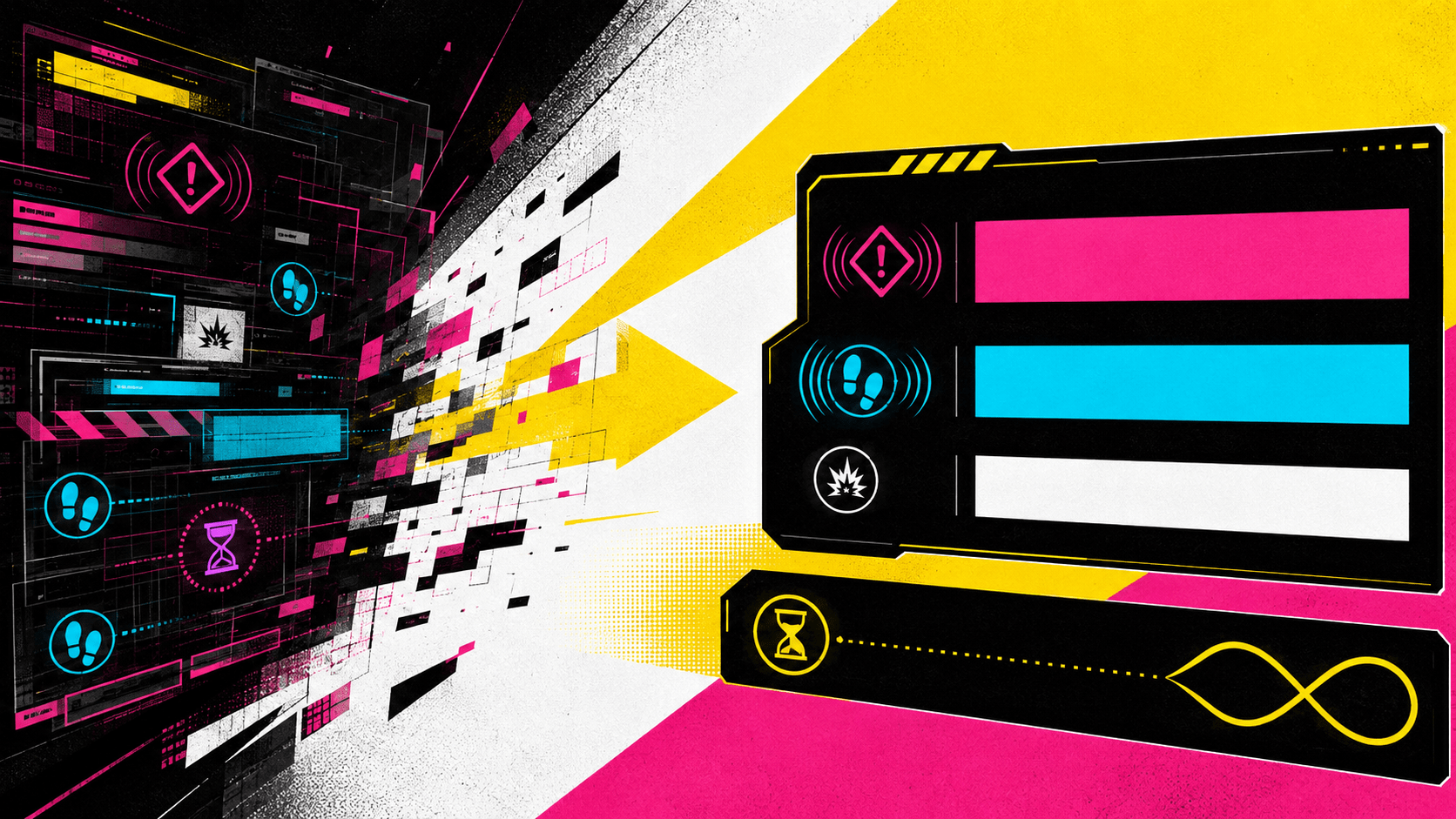
Cyberpunk 2077 includes several settings that change the readability and visual presentation of its interface. Players can enlarge selected text and heads-up display elements, remove decorative effects, adjust subtitles, and disable the timer in the Breach Protocol hacking minigame.
These are built-in settings available through the Accessibility tab added in Update 2.1. They can be enabled independently rather than applied as one preset.
Remove the Breach Protocol Time Limit
The Hacking Minigame Time Limit setting removes the timer from Breach Protocol. This allows players to examine the code matrix and plan a sequence without the same time pressure.
The option affects the Breach Protocol minigame rather than every timed activity in Cyberpunk 2077. Combat, dialogue, missions, and other sequences may still include time-sensitive decisions or actions.
Larger Interface Fonts
The Larger Fonts option increases text size in many parts of the interface. Affected areas include most tooltips and settings screens, loading-screen tips, inventory category names, database entries, statistics, crafting panels, parts of the journal, scanner information, and selected save and load information.
The setting does not enlarge every piece of text. CD Projekt Red describes several affected areas as “most” or “some,” so players may still encounter smaller text in parts of the interface.
Larger HUD Elements
The Larger HUD Elements setting increases the size of information displayed during gameplay. This is separate from the Larger Fonts option, allowing players to enlarge heads-up display components without necessarily changing all supported interface text.
The option changes size rather than the amount of information shown. Players who also want to reduce the number of competing elements can use the separate decorative-element setting.
Reduce HUD Decorative Elements
Reduce HUD Decorative Elements hides interface components that are not required for gameplay. This can produce a less visually dense display while leaving functional information available.
The game determines which elements are considered decorative. This is not a fully customizable HUD editor, and it does not allow every individual interface component to be repositioned or removed separately.
Remove HUD Visual Effects
Remove HUD Visual Effects disables chromatic aberration and ghosting in the interface. These effects are particularly visible around the minimap, tracked quest, current weapon, equipment, and item displays.
This setting addresses visual effects applied to the HUD. It does not remove all chromatic aberration, lighting effects, animation, or distortion that may appear elsewhere in the game world.
Remove HUD Lens Distortion
Remove HUD Lens Distortion disables the curved or distorted presentation applied to parts of the interface. According to the official feature description, the change primarily affects the settings menu and minimap.
It is separate from the option that removes ghosting and chromatic aberration. Players may want to test both settings because each addresses a different visual treatment.
Subtitle Size and Background
Cyberpunk 2077 provides separate cinematic, radio, and overhead subtitles. Cinematic and radio subtitle text has six size choices, while overhead dialogue has five.
Background opacity can be adjusted for cinematic subtitles to increase contrast against detailed scenes. Overhead subtitles display background conversations above nearby characters, while radio subtitles provide text for supported broadcasts and radio dialogue.
Combining the Settings
These controls can be combined. For example, a player could enable larger fonts and HUD elements, remove ghosting and lens distortion, reduce decorative elements, and disable the Breach Protocol timer without changing aiming assistance or other gameplay controls.
Read the official Cyberpunk 2077 Update 2.1 accessibility information for the complete list of settings and their intended coverage.
Access needs and preferences vary. These options give players more control over selected interface barriers, but they do not guarantee that every menu, activity, or visual effect will meet an individual player’s needs.