
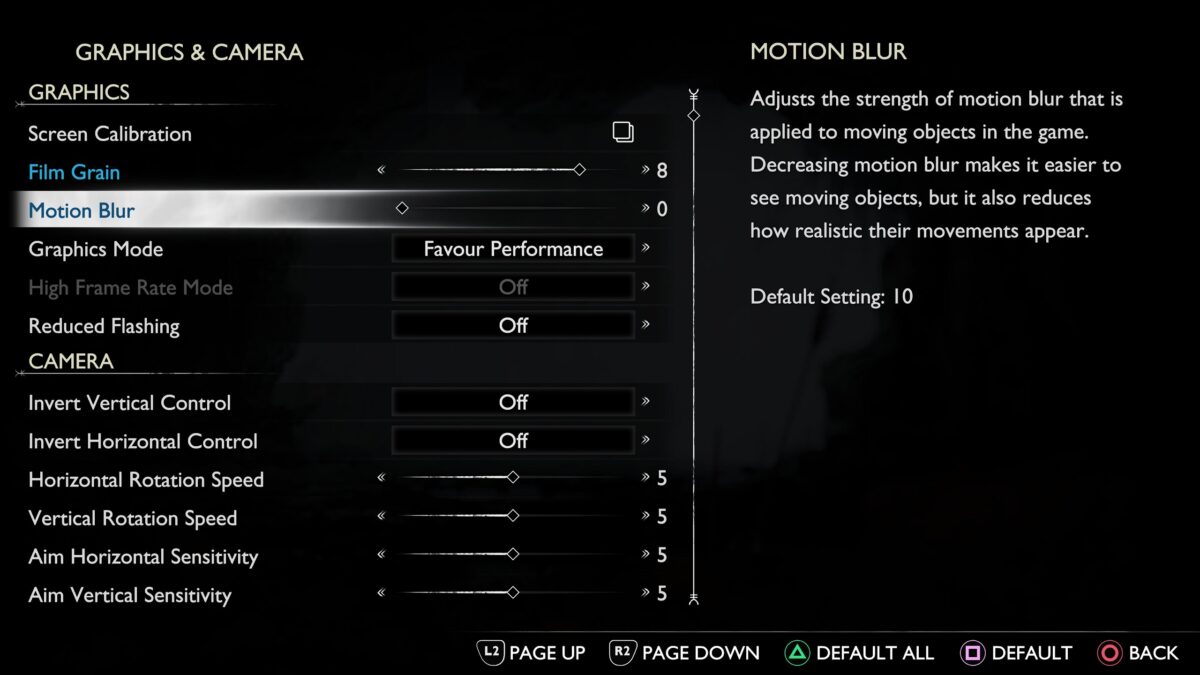
Motion blur applies a visual smearing effect to full-screen camera turns and fast-moving objects to simulate real-world motion. While designed to increase cinematic realism, screen-wide blurring during camera motion can interfere with visual clarity and tracking.
Access needs and preferences vary among players, so having direct control over motion blur allows individuals to configure visual effects to match their comfort level.
God of War Ragnarök
God of War Ragnarök includes an independent Motion Blur setting in its visual accessibility menu.
This built-in option uses a numerical slider scaled from 0 to 10. Setting the slider to 0 completely disables motion blur during gameplay and combat camera turns. The menu also provides a separate slider for film grain and individual controls for camera shake and ambient camera sway.
- Type: Built-in feature
- Supported platforms: PlayStation 4, PlayStation 5, PC (Steam, Epic Games Store)
- Requirements: Base game updated to current version
- Limitations: Disabling motion blur does not remove predetermined motion effects used in prerendered cinematic cutscenes.
- Location: Settings > Gameplay > Motion Blur (or Settings > Accessibility > Motion Blur)
Official documentation is available through the God of War Ragnarök Accessibility Features Guide.
Cyberpunk 2077
Cyberpunk 2077 provides a toggle dedicated to motion blur within its graphics settings.
This built-in feature allows players to switch motion blur off entirely or adjust it across low, medium, and high presets. Turning the setting off removes full-screen blur during first-person camera rotation, driving, and weapon aiming.
- Type: Built-in feature
- Supported platforms: PC, PlayStation 5, Xbox Series X/S
- Requirements: Update 1.5 or higher recommended for full setting stability across platforms
- Limitations: Turning off motion blur affects general camera movement but does not alter certain scripted full-screen visual distortions associated with story-based Cyberware effects.
- Location: Settings > Graphics > Basic > Motion Blur
Setting options are detailed on the CD Projekt Red Cyberpunk 2077 Support Page.
Cyberpunk 2077
Sea of Thieves features dedicated visual settings to disable motion blur during sailing and combat.
The built-in Motion Blur setting can be toggled directly to “Off.” This eliminates the blurring effect applied during rapid ship turning, cannon aiming, and running across islands.
- Type: Built-in feature
- Supported platforms: PC (Steam, Microsoft Store), Xbox One, Xbox Series X/S, PlayStation 5
- Requirements: Base game updated to the latest live service version
- Limitations: Turning off motion blur does not reduce water crest movement, ocean bobbing, or storm-related camera roll.
- Location: Settings > Video Settings > Motion Blur
Feature availability is confirmed via the Sea of Thieves Accessibility Guide.
Fortnite
Fortnite includes a direct Motion Blur toggle within its primary video options on supported platforms.
Switching this built-in option to “Off” removes motion-based blurring across building, sprinting, and camera rotation. Removing the blur maintains crisp visual edges around targets and structures during rapid mouse or stick movements.
- Type: Built-in feature
- Supported platforms: PC, PlayStation 4, PlayStation 5, Xbox One, Xbox Series X/S
- Requirements: Current game client installation
- Limitations: The motion blur toggle is not available on Nintendo Switch or mobile builds, where motion blur is permanently disabled by default for performance optimization.
- Location: Settings > Video > Graphic Quality > Motion Blur
Configuration details are available on the Epic Games Fortnite Accessibility Options Overview.